Audio Devices
MZAP supports three types of audio output devices. The device type is configured via settings before initialization.
DirectSound
Section titled “DirectSound”The legacy Windows audio API. Provides the widest hardware compatibility but highest latency.
- Use when: Maximum device compatibility is needed
- Latency: ~50-100ms
- Mode: Shared (other apps can use the device simultaneously)
WASAPI (Default)
Section titled “WASAPI (Default)”Windows Audio Session API — the recommended choice for most installations.
- Use when: Good balance of latency and compatibility is needed
- Latency: ~10-30ms
- Mode: Shared or Exclusive, chosen per device
- Buffer: Configurable, default 50ms
Audio Stream Input/Output — designed for professional audio hardware.
- Use when: Lowest latency and multi-channel I/O are required
- Latency: ~1-10ms
- Mode: Exclusive
- Inputs: ASIO input channels are available as audio capture sources
- Drivers: Requires ASIO-compatible hardware or ASIO4ALL
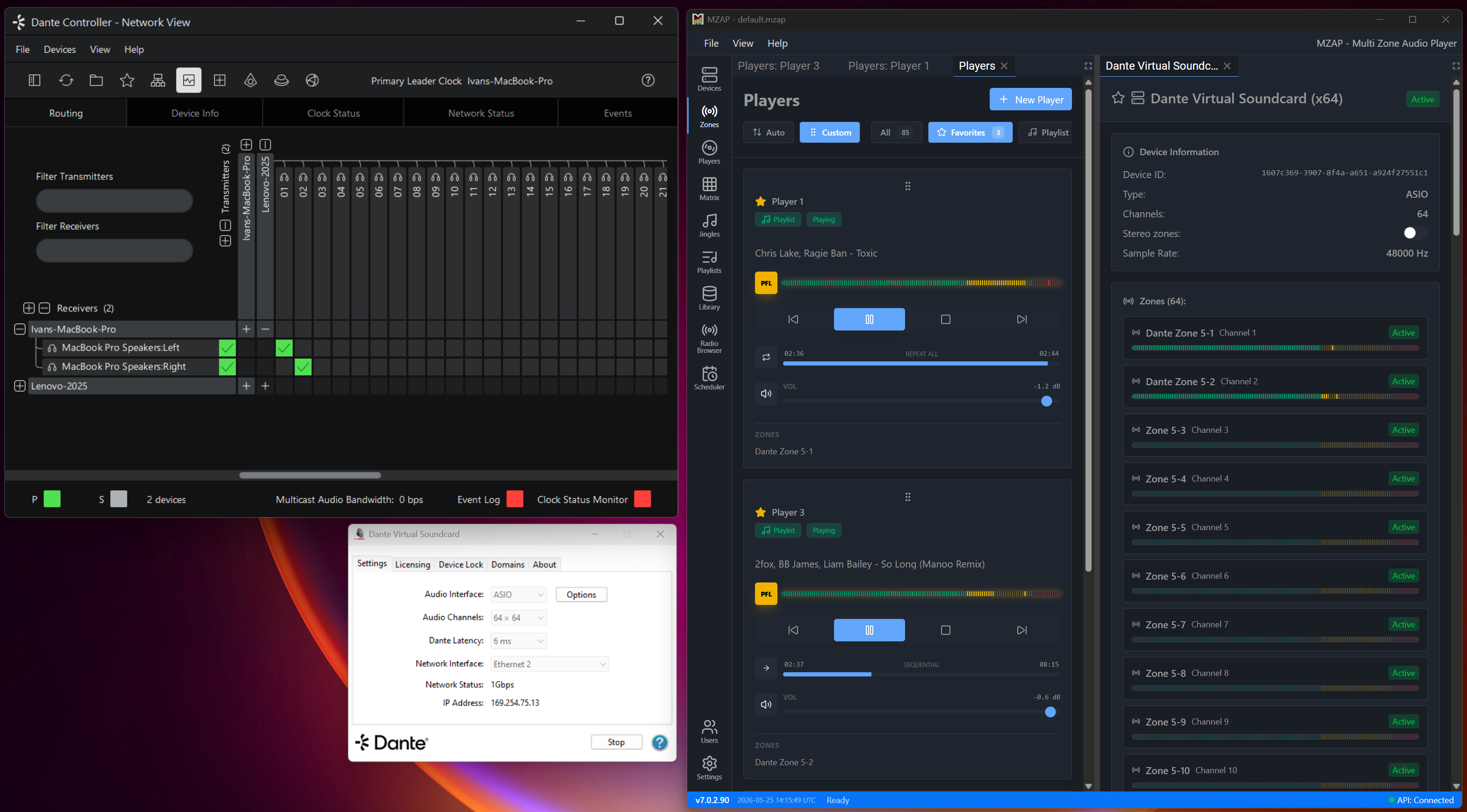
MZAP has full support for Audinate Dante audio-over-IP networks. Because Dante exposes itself to Windows as an ASIO device, you select it like any other ASIO interface and MZAP treats each Dante channel as a routable output or input channel.
The following Dante components are fully supported:
- Dante Virtual Soundcard (DVS) — up to 64×64 ASIO audio channels. Set MZAP's device type to ASIO and choose the Dante Virtual Soundcard driver. All 64 output channels become available for zones, and all 64 input channels become available as capture sources.
- Dante Via — route audio between applications and Dante devices on the same machine.
- Dante Controller — discover devices on the network and route MZAP's DVS channels to physical Dante endpoints (amplifiers, ceiling speakers, networked I/O boxes, etc.).
How it fits together
Section titled “How it fits together”- In MZAP, set the device type to ASIO and select the Dante Virtual Soundcard driver, then Initialize Devices.
- Create zones on the DVS channels you want to use — or use Create all zones to populate every free channel at once (see Bulk-create zones).
- Open Dante Controller and route MZAP's DVS transmit channels to the receive channels of your physical Dante devices. Routing is done entirely in Dante Controller's network matrix — MZAP simply plays into the DVS channels, and Dante carries the audio across the network.
Because DVS presents 64 channels, MZAP's high-channel-count handling applies — device cards, zone lists, and the routing grid stay manageable with filtering and folding.
Per-Device Output Mode
Section titled “Per-Device Output Mode”Each output device chooses its own WASAPI mode, so one machine can mix cards with opposite needs — a surround card on Exclusive for true 7.1, and another card left on Shared so Windows can still use it.
The device card in Audio Devices shows an Output mode selector:
- Shared (default) — the device coexists with Windows and other applications. On Windows 11 the system mixer may downmix 5.1/7.1 to the front pair.
- Exclusive — bypasses the Windows mixer for true discrete multichannel and the lowest latency, but locks the device from other apps (system sounds, browser audio) while MZAP uses it.
A device with no explicit choice keeps using the default (Shared), so existing setups are unchanged.
Exclusive mode requires Allow applications to take exclusive control of this device to be enabled on the endpoint in Windows — see Enabling WASAPI exclusive mode. If MZAP cannot get exclusive access at startup it falls back to Shared and the card shows a fallback warning rather than going silent.
Exclusive mode does not resample: MZAP probes the device for a supported exclusive sample rate (preferring the engine rate, then 48000, 44100, 96000, 88200, 192000) and runs the device mixer at that rate.
Turning Output Devices On and Off
Section titled “Turning Output Devices On and Off”Each output device card has an On/Off switch that tells MZAP whether to open that device at all. Devices that are off stay visible in the list — dimmed, with an Off badge — so you can switch them back on at any time.
This matters for sound cards that expose two output endpoints on one physical card. The Creative Sound Blaster Live! 24-bit External, for example, presents both a Speaker (5.1) endpoint and a SPDIF-Out (stereo) endpoint. Opening the unused second endpoint can make the driver collapse the whole card to stereo, silencing the multichannel speaker output. Switching the unused endpoint off keeps the card in full multichannel mode.
MZAP turns off "suspicious" zoneless siblings of a card already in use automatically; you can override the choice either way.
Devices with no zones mapped are not opened at all, so MZAP never locks or holds an output endpoint you are not using. Endpoints that are switched off can still appear as WASAPI loopback inputs (output-capture sources) — that is independent and unaffected.
Turning off an ASIO device
Section titled “Turning off an ASIO device”The switch works the same way for ASIO devices: when it is off, MZAP does not open that ASIO driver at all, neither for output nor for the device's ASIO inputs. Use it when:
- An audio interface is used through its Windows (WASAPI or DirectSound) outputs. Running the same interface through ASIO and WASAPI at the same time can make its output stop until Windows is restarted (seen with an ESI GigaPort eX).
- An ASIO driver is installed without its hardware, for example "Focusrite Thunderbolt ASIO" installed alongside "Focusrite USB ASIO".
While an ASIO device is off, its ASIO inputs are not listed under Input Devices, and input players on them show as missing, as with an unplugged device. As with other devices, the change applies after restarting MZAP.
Devices that are off, failed to open, or are unplugged are also left out of the Device list in the Add Zone and Edit Zone dialogs, since no zone can play on them. A hint under the field says so and points to the Devices tab. When you edit a zone whose device is currently unavailable, that device is still shown.
Device Initialization
Section titled “Device Initialization”When you click Initialize Devices, MZAP:
- Initializes a silent internal device for stream operations
- Enumerates all devices of the configured type
- Filters out duplicate "Default" pseudo-devices
- Realizes your saved zones on the matching devices
- Starts the level metering service
Zones are user-defined rather than created one-per-channel automatically — see Zones and Players.
Hot-Plug Support
Section titled “Hot-Plug Support”MZAP detects when devices are connected or disconnected. Use Refresh Devices to re-enumerate without restarting the application.
Refresh is incremental — it no longer tears down and rebuilds the whole audio engine:
- Devices that are still connected, and any audio currently playing through them, are left completely untouched. There is no audio gap.
- Newly connected output devices are added and their zones are realized; newly connected input/loopback devices get input players created automatically.
- Disconnected output devices are removed; their zones go offline and routes to them are cleared. Disconnected input/loopback devices keep their input players as offline placeholders so routing and assignments survive a reconnect.
- When a device is (re)connected, the players and zones routed to it keep their saved volume and mute settings — a newly-added device no longer plays at full volume ignoring the muted state shown in the UI.
Device Alerts
Section titled “Device Alerts”MZAP tells you when Windows or an ASIO driver reports a problem with an output device that has zones. A notification appears in the bottom-right corner and stays until you close it, so it is still there when you come back to the PC.
| Notification | What to do |
|---|---|
| Audio device stopped working | Replug it or restart MZAP; if there is still no sound, restart Windows. |
| Audio device was disconnected or disabled | Plug it back in or enable it in Windows. |
| Audio device is available again | Restart MZAP if it stays silent. |
| ASIO driver asked to be restarted (its settings changed, for example the buffer size or clock source in the driver's control panel) | Restart MZAP to restore sound. |
| ASIO driver now runs at a different sample rate | MZAP keeps playing with sample-rate conversion; switch the rate back for the best quality. |
Each device shows one notification with its latest state. For example, "stopped working" is replaced by "available again", and then by "recovered automatically" when automatic recovery is on.
Devices MZAP does not use, such as TV/HDMI outputs and microphones, are ignored. Every alert is also written to the log.
Automatic Recovery
Section titled “Automatic Recovery”By default MZAP only reports device problems. Turn on Settings → Audio → Automatically recover audio devices to let MZAP fix them itself, without a restart:
- WASAPI devices — when a device that has zones stops working, or is unplugged and plugged back in, MZAP re-opens it and its zones play again.
- ASIO devices — when the driver asks to be restarted (for example after you change its buffer size or clock source), MZAP re-opens it. Its zones and ASIO inputs work again within a second or two.
- ASIO sample-rate changes — MZAP keeps playing with sample-rate conversion and suggests switching the rate back. Switching it back re-opens the device at its original rate automatically.
A notification says the device was "recovered automatically", or, if recovery failed, asks you to restart MZAP (and Windows if there is still no sound).
Things to know:
- Plug a USB device back into the same USB port. Windows gives a device on another port a new identity, which needs an MZAP restart.
- Tracks that were playing may restart from the beginning after the device returns.
- An unplugged USB ASIO interface is not recovered automatically. Restart MZAP after plugging it back in.
- DirectSound devices are not recovered; they only show alerts.
High-Channel-Count Devices
Section titled “High-Channel-Count Devices”The device, zone, and player-routing views scale cleanly to interfaces with many channels (e.g. a 64-channel Dante Virtual Soundcard):
- Device cards show the first 16 zone/input chips and fold the rest behind a "+N more" toggle, so cards stay a consistent height. Chips are ordered by hardware channel.
- The device detail Zones list and the player-routing zone grid gain a filter box and bounded-height scrolling once there are more than 16 zones.
- To create a zone on every free channel at once, use Create all zones on the device detail page — see Bulk-create zones.
Reordering and Filtering Devices
Section titled “Reordering and Filtering Devices”A filter dropdown on the Devices screen shows All, Favorites, Output, Input or Loopback devices.
The Devices screen supports custom drag-and-drop ordering, matching the Players and Zones screens. Drag a card by its grip handle to reorder; output devices and input devices are reordered independently within their sections, and the chosen order is remembered with the workspace.
Non-Latin Device Names
Section titled “Non-Latin Device Names”Device and input names containing non-Latin characters (for example Cyrillic) display correctly. They are read from the audio engine as UTF-8.